python使用docxtpl库实现图片替换功能

Written by

in

文章目录
  • docxtpl 一个很强大的包,其主要通过对docx文档模板加载,从而对其进行修改,我主要是用docxtpl对图片进行替换。 简单代码如下: import base64 from docxtpl import DocxTemplate pl = int(input(‘输出数字:’)) num = ‘D:\py\testdata\1.docx’ tpl = DocxTemplate(num) # 定义图片名称位置 context = { 1: ‘1.jpg’, 2: ‘2.jpg’, } images = “base64” tmp_img = “%s.jpg” % (pl) with open(tmp_img, ‘wb’) as image_tpl: data = images.split(‘,’) imgs_tmp = base64.b64decode(data[1]) image_tpl.write(imgs_tmp) datas = image_tpl.name print(datas) # 判断位置,进行图片替换 if tpl: tpl.replace_pic(context.get(pl), datas) print(tpl) tpl.save(“决定1003.docx”) print(tpl)
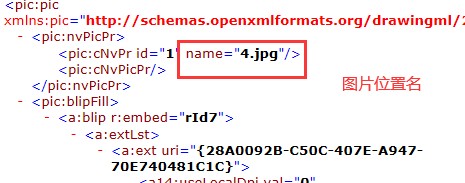
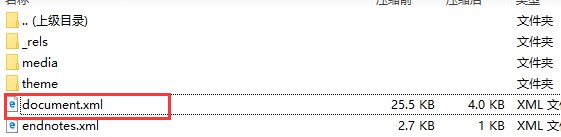
  • 如果图片位置不清楚可以使用docx转xml,然后进行解压在目录worddocument.xml下面可以找到图片的位置。
  • 1.Python替换图片的指定区域 要在Python中替换图片的指定区域,可以使用Pillow库。以下是一个简单的例子,展示如何替换图片的一个区域: from PIL import Image def replace_image_region(src_path, dest_path, region, replacement_image): # 加载原始图片和替换区域的图片 image = Image.open(src_path) replacement = Image.open(replacement_image).convert(image.mode) # 获取替换区域的大小 region_width, region_height = region[2] – region[0], region[3] – region[1] # 调整替换图片的大小以匹配替换区域 replacement = replacement.resize((region_width, region_height)) # 通过掩码获取替换区域 mask = Image.new(“L”, (region_width, region_height), 255) region_image = image.crop(region) # 应用掩码和替换图片 region_image.paste(replacement, (0, 0), mask) # 粘贴图片区域回原图 image.paste(region_image, region) # 保存新图片 image.save(dest_path) 使用示例 src_img_path = ‘source.jpg’ # 原始图片路径 dest_img_path = ‘destination.jpg’ # 替换后保存的图片路径 replacement_img_path = ‘replacement.png’ # 替换区域的图片路径 region = (100, 100, 300, 300) # 替换的区域坐标 (左, 上, 右, 下) replace_image_region(src_img_path, dest_img_path, region, replacement_img_path) 2.python-docx替换Word中图片的方法 需要先安装python-docx: pip install python-docx 再使用以下的代码: import docx from docx.shared import Cm def replace_img(in_word_path, out_word_path, output_paragraph_idx, new_img_path, height, width): “”” Replace a image in a docx(Word) file. :param in_word_path: The path of the input docx file to be replaced :param out_word_path: The path of the output docx file :param new_img_path: The path of the image that will be the new image in the docx file(i.e. one image(The image is assigned by output_paragraph_idx) will be replaced by the image which is in img_path) :param output_paragraph_idx: The paragraph index of the image in the docx file(The index starts with 0) :param height: The height of the new image which is in centimeters. :param width: The width of the new image which is in centimeters.. :return: Empty “”” doc = docx.Document(in_word_path) para = doc.paragraphs[output_paragraph_idx] para.clear() pic = para.add_run().add_picture(new_img_path) pic.height = Cm(height) pic.width = Cm(width) doc.save(out_word_path) 到此这篇关于python使用docxtpl库实现图片替换功能的文章就介绍到这了,更多相关python docxtpl图片替换内容请搜索风君子博客以前的文章或继续浏览下面的相关文章希望大家以后多多支持风君子博客! 您可能感兴趣的文章: Python批量处理PDF图片的操作指南(插入、压缩、提取、替换、分页、旋转、删除) Python在Word中进行图片添加、替换和删除操作 使用Python操作Excel中图片的基础示例(插入、替换、提取、删除) Python实现提取或替换PPT中文本与图片的示例代码 python图片指定区域替换img.paste函数的使用 Python3实现取图片中特定的像素替换指定的颜色示例 python使用正则表达式分析网页中的图片并进行替换的方法
  • 目录
    • 代码示例
    • 查找图片的位置
    • 方法补充

    docxtpl 一个很强大的包,其主要通过对docx文档模板加载,从而对其进行修改,我主要是用docxtpl对图片进行替换。

    简单代码如下:

    import base64
    from docxtpl import DocxTemplate
    
    pl = int(input('输出数字:'))
    num = 'D:\py\testdata\1.docx'
    tpl = DocxTemplate(num)
    # 定义图片名称位置
    context = {
        1: '1.jpg',
        2: '2.jpg',  
    }
    images = "base64"
    tmp_img = "%s.jpg" % (pl)
    with open(tmp_img, 'wb') as image_tpl:
        data = images.split(',')
        imgs_tmp = base64.b64decode(data[1])
        image_tpl.write(imgs_tmp)
        datas = image_tpl.name
    print(datas)
    # 判断位置,进行图片替换
    if tpl:
        tpl.replace_pic(context.get(pl), datas)
    print(tpl)
    tpl.save("决定1003.docx")
    print(tpl)

    如果图片位置不清楚可以使用docx转xml,然后进行解压在目录worddocument.xml下面可以找到图片的位置。
    1.Python替换图片的指定区域

    要在Python中替换图片的指定区域,可以使用Pillow库。以下是一个简单的例子,展示如何替换图片的一个区域:

    from PIL import Image
    
    def replace_image_region(src_path, dest_path, region, replacement_image):
    # 加载原始图片和替换区域的图片
    image = Image.open(src_path)
    replacement = Image.open(replacement_image).convert(image.mode)
    
    # 获取替换区域的大小
    region_width, region_height = region[2] - region[0], region[3] - region[1]
    
    # 调整替换图片的大小以匹配替换区域
    replacement = replacement.resize((region_width, region_height))
    
    # 通过掩码获取替换区域
    mask = Image.new("L", (region_width, region_height), 255)
    region_image = image.crop(region)
    
    # 应用掩码和替换图片
    region_image.paste(replacement, (0, 0), mask)
    
    # 粘贴图片区域回原图
    image.paste(region_image, region)
    
    # 保存新图片
    image.save(dest_path)

    使用示例

    src_img_path = ‘source.jpg' # 原始图片路径
    dest_img_path = ‘destination.jpg' # 替换后保存的图片路径
    replacement_img_path = ‘replacement.png' # 替换区域的图片路径
    region = (100, 100, 300, 300) # 替换的区域坐标 (左, 上, 右, 下)
    
    replace_image_region(src_img_path, dest_img_path, region, replacement_img_path)

    2.python-docx替换Word中图片的方法

    需要先安装python-docx:

    pip install python-docx
    

    再使用以下的代码:

    import docx
    from docx.shared import Cm
    
    
    def replace_img(in_word_path, out_word_path, output_paragraph_idx, new_img_path, height, width):
        """
        Replace a image in a docx(Word) file.
        :param in_word_path: The path of the input docx file to be replaced
        :param out_word_path: The path of the output docx file
        :param new_img_path: The path of the image that will be the new image in the docx file(i.e. one image(The image is assigned by output_paragraph_idx) will be replaced by the image which is in img_path)
        :param output_paragraph_idx: The paragraph index of the image in the docx file(The index starts with 0)
        :param height: The height of the new image which is in centimeters.
        :param width: The width of the new image which is in centimeters..
        :return: Empty
        """
        doc = docx.Document(in_word_path)
        para = doc.paragraphs[output_paragraph_idx]
        para.clear()
        pic = para.add_run().add_picture(new_img_path)
        pic.height = Cm(height)
        pic.width = Cm(width)
        doc.save(out_word_path)
    

    到此这篇关于python使用docxtpl库实现图片替换功能的文章就介绍到这了,更多相关python docxtpl图片替换内容请搜索风君子博客以前的文章或继续浏览下面的相关文章希望大家以后多多支持风君子博客!

    您可能感兴趣的文章:

    • Python批量处理PDF图片的操作指南(插入、压缩、提取、替换、分页、旋转、删除)
    • Python在Word中进行图片添加、替换和删除操作
    • 使用Python操作Excel中图片的基础示例(插入、替换、提取、删除)
    • Python实现提取或替换PPT中文本与图片的示例代码
    • python图片指定区域替换img.paste函数的使用
    • Python3实现取图片中特定的像素替换指定的颜色示例
    • python使用正则表达式分析网页中的图片并进行替换的方法

    站内搜索