
Python编写一个图片批量添加文字水印工具(附代码)

Written by

in

文章目录
  • 我们需要实现一个具备以下功能的桌面软件: 批量处理:支持拖拽或选择多个文件/文件夹。 可视化预览:在调整参数时实时预览水印效果。 高度自定义:支持设置水印文字、大小、颜色、透明度、旋转角度。 布局灵活:支持九宫格位置(如左上、右下)以及全图平铺模式。 防卡顿:使用多线程处理图片,避免界面冻结。
  • Python 3.x PyQt5: 用于构建图形用户界面 (GUI)。 Pillow (PIL): 用于核心的图像处理(绘制文字、旋转、合成)。
  • 首先,我们需要安装必要的第三方库: pip install PyQt5 Pillow
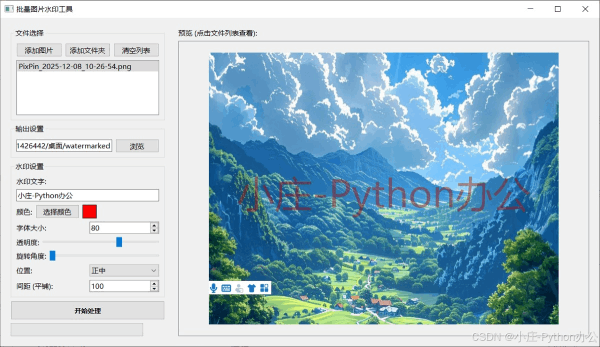
  • 运行 main.py 后,你将看到如下界面: 添加图片:点击“添加图片”或“添加文件夹”导入素材。 调整参数: 输入文字 “My Watermark”。 拖动“旋转角度”滑块到 30 度。 选择位置为“平铺”。 调整透明度为 30% 使得水印不喧宾夺主。 预览:右侧会立即显示效果,所见即所得。 输出:选择输出目录,点击“开始处理”,进度条跑完即大功告成!
  • import sys import os from PyQt5.QtWidgets import (QApplication, QMainWindow, QWidget, QVBoxLayout, QHBoxLayout, QLabel, QPushButton, QLineEdit, QFileDialog, QSlider, QSpinBox, QComboBox, QColorDialog, QProgressBar, QMessageBox, QGroupBox, QScrollArea, QListWidget) from PyQt5.QtCore import Qt, QThread, pyqtSignal from PyQt5.QtGui import QPixmap, QImage, QColor, QFont from PIL import Image, ImageDraw, ImageFont, ImageEnhance import math class Worker(QThread): progress = pyqtSignal(int) finished = pyqtSignal(str) error = pyqtSignal(str) def __init__(self, files, output_dir, config): super().__init__() self.files = files self.output_dir = output_dir self.config = config self.is_running = True def run(self): total = len(self.files) success_count = 0 if not os.path.exists(self.output_dir): try: os.makedirs(self.output_dir) except Exception as e: self.error.emit(f”无法创建输出目录: {str(e)}”) return for i, file_path in enumerate(self.files): if not self.is_running: break try: self.process_image(file_path) success_count += 1 except Exception as e: print(f”Error processing {file_path}: {e}”) self.progress.emit(int((i + 1) / total * 100)) self.finished.emit(f”处理完成!成功: {success_count}/{total}”) def process_image(self, file_path): try: with Image.open(file_path).convert(“RGBA”) as img: # 创建水印层 watermark = Image.new(‘RGBA’, img.size, (0, 0, 0, 0)) draw = ImageDraw.Draw(watermark) text = self.config[‘text’] font_size = self.config[‘font_size’] opacity = self.config[‘opacity’] rotation = self.config[‘rotation’] color = self.config[‘color’] # Tuple (r, g, b) position = self.config[‘position’] spacing = self.config[‘spacing’] # For tiling # 加载字体 (使用默认字体,因为系统字体路径复杂,这里简化处理) try: # 尝试使用微软雅黑 font = ImageFont.truetype(“msyh.ttc”, font_size) except: font = ImageFont.load_default() # default font doesn’t scale well, but fallback is needed # If we really want size, we might need a standard font file distributed with app # Trying basic arial if msyh fails try: font = ImageFont.truetype(“arial.ttf”, font_size) except: pass # Fallback to default # 计算文本大小 bbox = draw.textbbox((0, 0), text, font=font) text_width = bbox[2] – bbox[0] text_height = bbox[3] – bbox[1] # 创建单个水印图片用于旋转 # 留出足够空间以防旋转后被裁剪 max_dim = int(math.sqrt(text_width**2 + text_height**2)) txt_img = Image.new(‘RGBA’, (max_dim, max_dim), (0, 0, 0, 0)) txt_draw = ImageDraw.Draw(txt_img) # 居中绘制文本 text_x = (max_dim – text_width) // 2 text_y = (max_dim – text_height) // 2 # 设置颜色和透明度 fill_color = (color[0], color[1], color[2], int(255 * opacity)) txt_draw.text((text_x, text_y), text, font=font, fill=fill_color) # 旋转 if rotation != 0: txt_img = txt_img.rotate(rotation, resample=Image.BICUBIC) # 获取旋转后的实际内容边界(可选,但为了精确布局最好做) # 这里简单处理,直接使用txt_img w_width, w_height = txt_img.size if position == ‘平铺 (Tile)’: # 平铺逻辑 # spacing 是间距倍数或像素 step_x = int(w_width + spacing) step_y = int(w_height + spacing) if step_x <= 0: step_x = w_width + 50 if step_y <= 0: step_y = w_height + 50 for y in range(0, img.height, step_y): for x in range(0, img.width, step_x): watermark.paste(txt_img, (x, y), txt_img) else: # 单个位置逻辑 pos_x = 0 pos_y = 0 margin = 20 if ‘左’ in position: pos_x = margin elif ‘右’ in position: pos_x = img.width – w_width – margin else: # 中 (水平) pos_x = (img.width – w_width) // 2 if ‘上’ in position: pos_y = margin elif ‘下’ in position: pos_y = img.height – w_height – margin else: # 中 (垂直) pos_y = (img.height – w_height) // 2 watermark.paste(txt_img, (pos_x, pos_y), txt_img) # 合成 out = Image.alpha_composite(img, watermark) # 保存 filename = os.path.basename(file_path) save_path = os.path.join(self.output_dir, filename) # Convert back to RGB if saving as JPEG, otherwise keep RGBA for PNG if filename.lower().endswith((‘.jpg’, ‘.jpeg’)): out = out.convert(‘RGB’) out.save(save_path, quality=95) else: out.save(save_path) except Exception as e: print(f”Processing failed for {file_path}: {e}”) raise e class WatermarkApp(QMainWindow): def __init__(self): super().__init__() self.setWindowTitle(“批量图片水印工具”) self.resize(1000, 700) # Data self.image_files = [] self.current_preview_image = None self.watermark_color = (255, 255, 255) # Default white # UI Setup central_widget = QWidget() self.setCentralWidget(central_widget) main_layout = QHBoxLayout(central_widget) # Left Panel (Settings) left_panel = QWidget() left_layout = QVBoxLayout(left_panel) left_panel.setFixedWidth(350) main_layout.addWidget(left_panel) # 1. File Selection grp_files = QGroupBox(“文件选择”) grp_files_layout = QVBoxLayout() btn_layout = QHBoxLayout() self.btn_add_files = QPushButton(“添加图片”) self.btn_add_files.clicked.connect(self.add_files) self.btn_add_folder = QPushButton(“添加文件夹”) self.btn_add_folder.clicked.connect(self.add_folder) self.btn_clear_files = QPushButton(“清空列表”) self.btn_clear_files.clicked.connect(self.clear_files) btn_layout.addWidget(self.btn_add_files) btn_layout.addWidget(self.btn_add_folder) btn_layout.addWidget(self.btn_clear_files) self.list_files = QListWidget() self.list_files.currentRowChanged.connect(self.update_preview) grp_files_layout.addLayout(btn_layout) grp_files_layout.addWidget(self.list_files) grp_files.setLayout(grp_files_layout) left_layout.addWidget(grp_files) # 2. Output Directory grp_output = QGroupBox(“输出设置”) grp_output_layout = QVBoxLayout() out_path_layout = QHBoxLayout() self.edit_output = QLineEdit() self.edit_output.setPlaceholderText(“选择输出目录…”) self.btn_browse_output = QPushButton(“浏览”) self.btn_browse_output.clicked.connect(self.browse_output) out_path_layout.addWidget(self.edit_output) out_path_layout.addWidget(self.btn_browse_output) grp_output_layout.addLayout(out_path_layout) grp_output.setLayout(grp_output_layout) left_layout.addWidget(grp_output) # 3. Watermark Settings grp_settings = QGroupBox(“水印设置”) grp_settings_layout = QVBoxLayout() # Text self.edit_text = QLineEdit(“Sample Watermark”) self.edit_text.setPlaceholderText(“输入水印文字”) self.edit_text.textChanged.connect(self.update_preview_delayed) grp_settings_layout.addWidget(QLabel(“水印文字:”)) grp_settings_layout.addWidget(self.edit_text) # Color color_layout = QHBoxLayout() self.btn_color = QPushButton(“选择颜色”) self.btn_color.clicked.connect(self.choose_color) self.lbl_color_preview = QLabel(” “) self.lbl_color_preview.setStyleSheet(“background-color: white; border: 1px solid black;”) self.lbl_color_preview.setFixedWidth(30) color_layout.addWidget(QLabel(“颜色:”)) color_layout.addWidget(self.btn_color) color_layout.addWidget(self.lbl_color_preview) color_layout.addStretch() grp_settings_layout.addLayout(color_layout) # Font Size size_layout = QHBoxLayout() self.spin_size = QSpinBox() self.spin_size.setRange(10, 500) self.spin_size.setValue(40) self.spin_size.valueChanged.connect(self.update_preview_delayed) size_layout.addWidget(QLabel(“字体大小:”)) size_layout.addWidget(self.spin_size) grp_settings_layout.addLayout(size_layout) # Opacity opacity_layout = QHBoxLayout() self.slider_opacity = QSlider(Qt.Horizontal) self.slider_opacity.setRange(0, 100) self.slider_opacity.setValue(50) self.slider_opacity.valueChanged.connect(self.update_preview_delayed) opacity_layout.addWidget(QLabel(“透明度:”)) opacity_layout.addWidget(self.slider_opacity) grp_settings_layout.addLayout(opacity_layout) # Rotation rotation_layout = QHBoxLayout() self.slider_rotation = QSlider(Qt.Horizontal) self.slider_rotation.setRange(0, 360) self.slider_rotation.setValue(0) self.slider_rotation.valueChanged.connect(self.update_preview_delayed) rotation_layout.addWidget(QLabel(“旋转角度:”)) rotation_layout.addWidget(self.slider_rotation) grp_settings_layout.addLayout(rotation_layout) # Position pos_layout = QHBoxLayout() self.combo_pos = QComboBox() positions = [ “左上”, “中上”, “右上”, “左中”, “正中”, “右中”, “左下”, “中下”, “右下”, “平铺 (Tile)” ] self.combo_pos.addItems(positions) self.combo_pos.setCurrentText(“右下”) self.combo_pos.currentIndexChanged.connect(self.update_preview_delayed) pos_layout.addWidget(QLabel(“位置:”)) pos_layout.addWidget(self.combo_pos) grp_settings_layout.addLayout(pos_layout) # Spacing (only for tile) spacing_layout = QHBoxLayout() self.spin_spacing = QSpinBox() self.spin_spacing.setRange(0, 500) self.spin_spacing.setValue(100) self.spin_spacing.valueChanged.connect(self.update_preview_delayed) spacing_layout.addWidget(QLabel(“间距 (平铺):”)) spacing_layout.addWidget(self.spin_spacing) grp_settings_layout.addLayout(spacing_layout) grp_settings.setLayout(grp_settings_layout) left_layout.addWidget(grp_settings) left_layout.addStretch() # Action Buttons self.btn_start = QPushButton(“开始处理”) self.btn_start.setMinimumHeight(40) self.btn_start.setStyleSheet(“font-weight: bold; font-size: 14px;”) self.btn_start.clicked.connect(self.start_processing) left_layout.addWidget(self.btn_start) self.progress_bar = QProgressBar() left_layout.addWidget(self.progress_bar) # Right Panel (Preview) right_panel = QWidget() right_layout = QVBoxLayout(right_panel) main_layout.addWidget(right_panel) right_layout.addWidget(QLabel(“预览 (点击文件列表查看):”)) self.scroll_area = QScrollArea() self.scroll_area.setWidgetResizable(True) self.lbl_preview = QLabel() self.lbl_preview.setAlignment(Qt.AlignCenter) self.scroll_area.setWidget(self.lbl_preview) right_layout.addWidget(self.scroll_area) # Debounce timer for preview update to avoid lag self.preview_timer = None def add_files(self): files, _ = QFileDialog.getOpenFileNames(self, “选择图片”, “”, “Images (*.png *.jpg *.jpeg *.bmp)”) if files: self.image_files.extend(files) self.update_file_list() if not self.edit_output.text(): self.edit_output.setText(os.path.dirname(files[0]) + “/watermarked”) def add_folder(self): folder = QFileDialog.getExistingDirectory(self, “选择文件夹”) if folder: for root, dirs, files in os.walk(folder): for file in files: if file.lower().endswith((‘.png’, ‘.jpg’, ‘.jpeg’, ‘.bmp’)): self.image_files.append(os.path.join(root, file)) self.update_file_list() if not self.edit_output.text(): self.edit_output.setText(folder + “/watermarked”) def clear_files(self): self.image_files = [] self.update_file_list() self.lbl_preview.clear() def update_file_list(self): self.list_files.clear() for f in self.image_files: self.list_files.addItem(os.path.basename(f)) if self.image_files: self.list_files.setCurrentRow(0) def browse_output(self): folder = QFileDialog.getExistingDirectory(self, “选择输出目录”) if folder: self.edit_output.setText(folder) def choose_color(self): color = QColorDialog.getColor() if color.isValid(): self.watermark_color = (color.red(), color.green(), color.blue()) self.lbl_color_preview.setStyleSheet(f”background-color: {color.name()}; border: 1px solid black;”) self.update_preview() def update_preview_delayed(self): # In a real app, use a QTimer to debounce. # For simplicity here, just call update_preview directly, # but keep method name to indicate intent if we add timer later. self.update_preview() def update_preview(self): row = self.list_files.currentRow() if row < 0 or row >= len(self.image_files): return file_path = self.image_files[row] # Generate preview try: config = self.get_config() # Use PIL to generate preview with Image.open(file_path).convert(“RGBA”) as img: # Resize for preview if too large preview_max_size = 800 if img.width > preview_max_size or img.height > preview_max_size: img.thumbnail((preview_max_size, preview_max_size)) # Apply watermark (Reuse logic? For now duplicate simplified logic for preview speed) watermark = Image.new(‘RGBA’, img.size, (0, 0, 0, 0)) draw = ImageDraw.Draw(watermark) font_size = config[‘font_size’] # Scale font size relative to preview thumbnail # Note: config[‘font_size’] is for the original image? # Ideally we should scale it down. But font size is usually absolute pixels. # If we scaled down the image, the font will look HUGE if we don’t scale it too. # So we need to know the original image size vs preview size. # Let’s read original size first with Image.open(file_path) as orig_img: orig_w, orig_h = orig_img.size scale_factor = img.width / orig_w scaled_font_size = int(font_size * scale_factor) if scaled_font_size < 1: scaled_font_size = 1 try: font = ImageFont.truetype(“msyh.ttc”, scaled_font_size) except: font = ImageFont.load_default() try: font = ImageFont.truetype(“arial.ttf”, scaled_font_size) except: pass text = config[‘text’] bbox = draw.textbbox((0, 0), text, font=font) text_width = bbox[2] – bbox[0] text_height = bbox[3] – bbox[1] max_dim = int(math.sqrt(text_width**2 + text_height**2)) txt_img = Image.new(‘RGBA’, (max_dim, max_dim), (0, 0, 0, 0)) txt_draw = ImageDraw.Draw(txt_img) text_x = (max_dim – text_width) // 2 text_y = (max_dim – text_height) // 2 color = config[‘color’] opacity = config[‘opacity’] fill_color = (color[0], color[1], color[2], int(255 * opacity)) txt_draw.text((text_x, text_y), text, font=font, fill=fill_color) if config[‘rotation’] != 0: txt_img = txt_img.rotate(config[‘rotation’], resample=Image.BICUBIC) w_width, w_height = txt_img.size if config[‘position’] == ‘平铺 (Tile)’: scaled_spacing = int(config[‘spacing’] * scale_factor) step_x = int(w_width + scaled_spacing) step_y = int(w_height + scaled_spacing) if step_x <= 0: step_x = w_width + 10 if step_y <= 0: step_y = w_height + 10 for y in range(0, img.height, step_y): for x in range(0, img.width, step_x): watermark.paste(txt_img, (x, y), txt_img) else: pos_x = 0 pos_y = 0 margin = int(20 * scale_factor) position = config[‘position’] if ‘左’ in position: pos_x = margin elif ‘右’ in position: pos_x = img.width – w_width – margin else: pos_x = (img.width – w_width) // 2 if ‘上’ in position: pos_y = margin elif ‘下’ in position: pos_y = img.height – w_height – margin else: pos_y = (img.height – w_height) // 2 watermark.paste(txt_img, (pos_x, pos_y), txt_img) out = Image.alpha_composite(img, watermark) # Convert to QPixmap if out.mode == “RGBA”: r, g, b, a = out.split() out = Image.merge(“RGBA”, (b, g, r, a)) elif out.mode == “RGB”: r, g, b = out.split() out = Image.merge(“RGB”, (b, g, r)) im2 = out.convert(“RGBA”) data = im2.tobytes(“raw”, “RGBA”) qim = QImage(data, out.size[0], out.size[1], QImage.Format_ARGB32) pixmap = QPixmap.fromImage(qim) self.lbl_preview.setPixmap(pixmap) except Exception as e: print(f”Preview error: {e}”) def get_config(self): return { ‘text’: self.edit_text.text(), ‘font_size’: self.spin_size.value(), ‘opacity’: self.slider_opacity.value() / 100.0, ‘rotation’: self.slider_rotation.value(), ‘color’: self.watermark_color, ‘position’: self.combo_pos.currentText(), ‘spacing’: self.spin_spacing.value() } def start_processing(self): if not self.image_files: QMessageBox.warning(self, “提示”, “请先添加图片!”) return output_dir = self.edit_output.text() if not output_dir: QMessageBox.warning(self, “提示”, “请选择输出目录!”) return self.btn_start.setEnabled(False) self.progress_bar.setValue(0) config = self.get_config() self.worker = Worker(self.image_files, output_dir, config) self.worker.progress.connect(self.progress_bar.setValue) self.worker.finished.connect(self.processing_finished) self.worker.error.connect(self.processing_error) self.worker.start() def processing_finished(self, msg): self.btn_start.setEnabled(True) QMessageBox.information(self, “完成”, msg) def processing_error(self, msg): self.btn_start.setEnabled(True) QMessageBox.critical(self, “错误”, msg) if __name__ == “__main__”: app = QApplication(sys.argv) # 设置全局字体,看起来更现代一点 font = QFont(“Microsoft YaHei”, 9) app.setFont(font) window = WatermarkApp() window.show() sys.exit(app.exec_())
  • 通过不到 400 行代码,我们结合了 PyQt5 的交互能力和 Pillow 的图像处理能力,开发出了一个实用的桌面工具。这个项目很好的展示了 Python 在自动化办公和工具开发领域的优势。 扩展思路: 支持图片水印(Logo)。 保存/加载配置模板,方便下次直接使用。 打包成 exe 文件(使用 pyinstaller),方便分享给没有安装 Python 的同事使用。 以上就是Python编写一个图片批量添加文字水印工具(附代码)的详细内容,更多关于Python图片批量添加文字水印的资料请关注风君子博客其它相关文章! 您可能感兴趣的文章: Python如何快速在PDF中添加文字或者图片水印 Python操作word实现添加文字或图片水印 Python实现给图片添加文字或图片水印 Python 实现给图片加文字或logo水印 python实现图片加文字水印OPenCV和PIL库 Python 使用 Pillow 模块给图片添加文字水印的方法
  • 目录
    • 项目目标
    • 技术栈
    • 运行效果
    • 环境搭建
    • 核心实现思路
      • 界面设计 (PyQt5)
      • 图像处理核心 (Pillow)
      • 多线程处理 (QThread)
    • 核心代码解析
      • 水印绘制逻辑
      • 实时预览实现
    • 完整功能展示
      • 完整代码
        • 总结

          在日常工作和自媒体运营中,我们经常需要给大量的图片添加水印以保护版权。市面上的工具要么收费,要么功能单一。今天,我们将使用 Python 强大的 GUI 库 PyQt5 和图像处理库 Pillow (PIL),亲手打造一个免费、开源且功能强大的批量水印工具。

          我们需要实现一个具备以下功能的桌面软件:

          • 批量处理:支持拖拽或选择多个文件/文件夹。
          • 可视化预览:在调整参数时实时预览水印效果。
          • 高度自定义:支持设置水印文字、大小、颜色、透明度、旋转角度。
          • 布局灵活:支持九宫格位置(如左上、右下)以及全图平铺模式。
          • 防卡顿:使用多线程处理图片,避免界面冻结。

          Python 3.x

          PyQt5: 用于构建图形用户界面 (GUI)。

          Pillow (PIL): 用于核心的图像处理(绘制文字、旋转、合成)。

          首先,我们需要安装必要的第三方库:

          pip install PyQt5 Pillow
          

          我们将界面分为左右两部分:

          • 左侧 (控制面板):包含文件列表、输出路径设置、以及所有的水印参数控件(输入框、滑块、下拉框等)。
          • 右侧 (预览区):显示当前选中图片的实时预览效果。

          我们使用 QHBoxLayout (水平布局) 来容纳左右面板,左侧面板内部使用 QVBoxLayout (垂直布局) 来排列各个设置组 (QGroupBox)。

          这是整个工具的灵魂。主要步骤如下:

          1.打开图片:使用 Image.open() 并转换为 RGBA 模式以便处理透明度。

          2.创建水印层:创建一个与原图等大的透明图层。

          3.绘制文字

          • 使用 ImageDraw.Draw 绘制文本。
          • 计算文本大小 (draw.textbbox) 以便居中或定位。
          • 处理颜色和透明度。

          4.旋转与平铺

          • 如果需要旋转,先在一个单独的小图层上绘制文字并旋转,然后粘贴到大水印层上。
          • 平铺模式:通过双重循环 (for x... for y...) 计算坐标,将水印重复粘贴到全图。

          5.合成与保存:使用 Image.alpha_composite 将水印层叠加到原图,最后保存。

          为了防止在处理几百张大图时界面卡死(“未响应”),我们将耗时的图片处理逻辑放入后台线程 Worker 中。

          class Worker(QThread):
              progress = pyqtSignal(int)  # 进度信号
              finished = pyqtSignal(str)  # 完成信号
          
              def run(self):
                  # 遍历文件列表进行处理
                  for i, file_path in enumerate(self.files):
                      self.process_image(file_path)
                      self.progress.emit(...) # 更新进度条
          

          这是实现平铺和定位的关键代码片段:

          def process_image(self, file_path):
              with Image.open(file_path).convert("RGBA") as img:
                  # 创建全透明水印层
                  watermark = Image.new('RGBA', img.size, (0, 0, 0, 0))
                  
                  # ... (省略字体加载和颜色设置) ...
          
                  # 创建单个水印小图用于旋转
                  txt_img = Image.new('RGBA', (max_dim, max_dim), (0, 0, 0, 0))
                  txt_draw = ImageDraw.Draw(txt_img)
                  txt_draw.text((text_x, text_y), text, font=font, fill=fill_color)
                  
                  # 旋转
                  if rotation != 0:
                      txt_img = txt_img.rotate(rotation, resample=Image.BICUBIC)
          
                  # 核心布局逻辑
                  if position == '平铺 (Tile)':
                      # 双重循环实现全图平铺
                      step_x = int(w_width + spacing)
                      step_y = int(w_height + spacing)
                      for y in range(0, img.height, step_y):
                          for x in range(0, img.width, step_x):
                              watermark.paste(txt_img, (x, y), txt_img)
                  else:
                      # 九宫格定位逻辑
                      # 根据 '左', '右', '上', '下' 关键字计算坐标
                      # ...
                      watermark.paste(txt_img, (pos_x, pos_y), txt_img)
          
                  # 合成最终图片
                  out = Image.alpha_composite(img, watermark)
          

          预览功能的难点在于性能。我们不能每次调整参数都去处理原图(原图可能几千万像素)。

          优化方案

          • 加载原图后,先生成一个较小的缩略图(例如最大边长 800px)。
          • 所有的预览计算都在这个缩略图上进行。
          • 注意:字体大小和间距需要根据缩略图的比例进行缩放,否则预览效果会和实际输出不一致。
          # 缩放比例计算
          scale_factor = preview_img.width / original_img_width
          # 字体大小也要随之缩放
          preview_font_size = int(user_set_font_size * scale_factor)
          

          运行 main.py 后,你将看到如下界面:

          添加图片:点击“添加图片”或“添加文件夹”导入素材。

          调整参数

          • 输入文字 “My Watermark”。
          • 拖动“旋转角度”滑块到 30 度。
          • 选择位置为“平铺”。
          • 调整透明度为 30% 使得水印不喧宾夺主。

          预览:右侧会立即显示效果,所见即所得。

          输出:选择输出目录,点击“开始处理”,进度条跑完即大功告成!

          import sys
          import os
          from PyQt5.QtWidgets import (QApplication, QMainWindow, QWidget, QVBoxLayout, QHBoxLayout, 
                                       QLabel, QPushButton, QLineEdit, QFileDialog, QSlider, QSpinBox, 
                                       QComboBox, QColorDialog, QProgressBar, QMessageBox, QGroupBox, 
                                       QScrollArea, QListWidget)
          from PyQt5.QtCore import Qt, QThread, pyqtSignal
          from PyQt5.QtGui import QPixmap, QImage, QColor, QFont
          from PIL import Image, ImageDraw, ImageFont, ImageEnhance
          import math
          
          class Worker(QThread):
              progress = pyqtSignal(int)
              finished = pyqtSignal(str)
              error = pyqtSignal(str)
          
              def __init__(self, files, output_dir, config):
                  super().__init__()
                  self.files = files
                  self.output_dir = output_dir
                  self.config = config
                  self.is_running = True
          
              def run(self):
                  total = len(self.files)
                  success_count = 0
                  
                  if not os.path.exists(self.output_dir):
                      try:
                          os.makedirs(self.output_dir)
                      except Exception as e:
                          self.error.emit(f"无法创建输出目录: {str(e)}")
                          return
          
                  for i, file_path in enumerate(self.files):
                      if not self.is_running:
                          break
                      
                      try:
                          self.process_image(file_path)
                          success_count += 1
                      except Exception as e:
                          print(f"Error processing {file_path}: {e}")
                      
                      self.progress.emit(int((i + 1) / total * 100))
          
                  self.finished.emit(f"处理完成!成功: {success_count}/{total}")
          
              def process_image(self, file_path):
                  try:
                      with Image.open(file_path).convert("RGBA") as img:
                          # 创建水印层
                          watermark = Image.new('RGBA', img.size, (0, 0, 0, 0))
                          draw = ImageDraw.Draw(watermark)
                          
                          text = self.config['text']
                          font_size = self.config['font_size']
                          opacity = self.config['opacity']
                          rotation = self.config['rotation']
                          color = self.config['color'] # Tuple (r, g, b)
                          position = self.config['position']
                          spacing = self.config['spacing'] # For tiling
                          
                          # 加载字体 (使用默认字体,因为系统字体路径复杂,这里简化处理)
                          try:
                              # 尝试使用微软雅黑
                              font = ImageFont.truetype("msyh.ttc", font_size)
                          except:
                              font = ImageFont.load_default()
                              # default font doesn't scale well, but fallback is needed
                              # If we really want size, we might need a standard font file distributed with app
                              # Trying basic arial if msyh fails
                              try:
                                  font = ImageFont.truetype("arial.ttf", font_size)
                              except:
                                  pass # Fallback to default
                          
                          # 计算文本大小
                          bbox = draw.textbbox((0, 0), text, font=font)
                          text_width = bbox[2] - bbox[0]
                          text_height = bbox[3] - bbox[1]
                          
                          # 创建单个水印图片用于旋转
                          # 留出足够空间以防旋转后被裁剪
                          max_dim = int(math.sqrt(text_width**2 + text_height**2))
                          txt_img = Image.new('RGBA', (max_dim, max_dim), (0, 0, 0, 0))
                          txt_draw = ImageDraw.Draw(txt_img)
                          
                          # 居中绘制文本
                          text_x = (max_dim - text_width) // 2
                          text_y = (max_dim - text_height) // 2
                          
                          # 设置颜色和透明度
                          fill_color = (color[0], color[1], color[2], int(255 * opacity))
                          txt_draw.text((text_x, text_y), text, font=font, fill=fill_color)
                          
                          # 旋转
                          if rotation != 0:
                              txt_img = txt_img.rotate(rotation, resample=Image.BICUBIC)
                          
                          # 获取旋转后的实际内容边界(可选,但为了精确布局最好做)
                          # 这里简单处理,直接使用txt_img
                          
                          w_width, w_height = txt_img.size
                          
                          if position == '平铺 (Tile)':
                              # 平铺逻辑
                              # spacing 是间距倍数或像素
                              step_x = int(w_width + spacing)
                              step_y = int(w_height + spacing)
                              
                              if step_x <= 0: step_x = w_width + 50
                              if step_y <= 0: step_y = w_height + 50
          
                              for y in range(0, img.height, step_y):
                                  for x in range(0, img.width, step_x):
                                      watermark.paste(txt_img, (x, y), txt_img)
                                      
                          else:
                              # 单个位置逻辑
                              pos_x = 0
                              pos_y = 0
                              margin = 20
                              
                              if '左' in position:
                                  pos_x = margin
                              elif '右' in position:
                                  pos_x = img.width - w_width - margin
                              else: # 中 (水平)
                                  pos_x = (img.width - w_width) // 2
                                  
                              if '上' in position:
                                  pos_y = margin
                              elif '下' in position:
                                  pos_y = img.height - w_height - margin
                              else: # 中 (垂直)
                                  pos_y = (img.height - w_height) // 2
                                  
                              watermark.paste(txt_img, (pos_x, pos_y), txt_img)
          
                          # 合成
                          out = Image.alpha_composite(img, watermark)
                          
                          # 保存
                          filename = os.path.basename(file_path)
                          save_path = os.path.join(self.output_dir, filename)
                          
                          # Convert back to RGB if saving as JPEG, otherwise keep RGBA for PNG
                          if filename.lower().endswith(('.jpg', '.jpeg')):
                              out = out.convert('RGB')
                              out.save(save_path, quality=95)
                          else:
                              out.save(save_path)
                              
                  except Exception as e:
                      print(f"Processing failed for {file_path}: {e}")
                      raise e
          
          class WatermarkApp(QMainWindow):
              def __init__(self):
                  super().__init__()
                  self.setWindowTitle("批量图片水印工具")
                  self.resize(1000, 700)
                  
                  # Data
                  self.image_files = []
                  self.current_preview_image = None
                  self.watermark_color = (255, 255, 255) # Default white
                  
                  # UI Setup
                  central_widget = QWidget()
                  self.setCentralWidget(central_widget)
                  main_layout = QHBoxLayout(central_widget)
                  
                  # Left Panel (Settings)
                  left_panel = QWidget()
                  left_layout = QVBoxLayout(left_panel)
                  left_panel.setFixedWidth(350)
                  main_layout.addWidget(left_panel)
                  
                  # 1. File Selection
                  grp_files = QGroupBox("文件选择")
                  grp_files_layout = QVBoxLayout()
                  
                  btn_layout = QHBoxLayout()
                  self.btn_add_files = QPushButton("添加图片")
                  self.btn_add_files.clicked.connect(self.add_files)
                  self.btn_add_folder = QPushButton("添加文件夹")
                  self.btn_add_folder.clicked.connect(self.add_folder)
                  self.btn_clear_files = QPushButton("清空列表")
                  self.btn_clear_files.clicked.connect(self.clear_files)
                  
                  btn_layout.addWidget(self.btn_add_files)
                  btn_layout.addWidget(self.btn_add_folder)
                  btn_layout.addWidget(self.btn_clear_files)
                  
                  self.list_files = QListWidget()
                  self.list_files.currentRowChanged.connect(self.update_preview)
                  
                  grp_files_layout.addLayout(btn_layout)
                  grp_files_layout.addWidget(self.list_files)
                  grp_files.setLayout(grp_files_layout)
                  left_layout.addWidget(grp_files)
                  
                  # 2. Output Directory
                  grp_output = QGroupBox("输出设置")
                  grp_output_layout = QVBoxLayout()
                  
                  out_path_layout = QHBoxLayout()
                  self.edit_output = QLineEdit()
                  self.edit_output.setPlaceholderText("选择输出目录...")
                  self.btn_browse_output = QPushButton("浏览")
                  self.btn_browse_output.clicked.connect(self.browse_output)
                  out_path_layout.addWidget(self.edit_output)
                  out_path_layout.addWidget(self.btn_browse_output)
                  
                  grp_output_layout.addLayout(out_path_layout)
                  grp_output.setLayout(grp_output_layout)
                  left_layout.addWidget(grp_output)
                  
                  # 3. Watermark Settings
                  grp_settings = QGroupBox("水印设置")
                  grp_settings_layout = QVBoxLayout()
                  
                  # Text
                  self.edit_text = QLineEdit("Sample Watermark")
                  self.edit_text.setPlaceholderText("输入水印文字")
                  self.edit_text.textChanged.connect(self.update_preview_delayed)
                  grp_settings_layout.addWidget(QLabel("水印文字:"))
                  grp_settings_layout.addWidget(self.edit_text)
                  
                  # Color
                  color_layout = QHBoxLayout()
                  self.btn_color = QPushButton("选择颜色")
                  self.btn_color.clicked.connect(self.choose_color)
                  self.lbl_color_preview = QLabel("   ")
                  self.lbl_color_preview.setStyleSheet("background-color: white; border: 1px solid black;")
                  self.lbl_color_preview.setFixedWidth(30)
                  color_layout.addWidget(QLabel("颜色:"))
                  color_layout.addWidget(self.btn_color)
                  color_layout.addWidget(self.lbl_color_preview)
                  color_layout.addStretch()
                  grp_settings_layout.addLayout(color_layout)
                  
                  # Font Size
                  size_layout = QHBoxLayout()
                  self.spin_size = QSpinBox()
                  self.spin_size.setRange(10, 500)
                  self.spin_size.setValue(40)
                  self.spin_size.valueChanged.connect(self.update_preview_delayed)
                  size_layout.addWidget(QLabel("字体大小:"))
                  size_layout.addWidget(self.spin_size)
                  grp_settings_layout.addLayout(size_layout)
                  
                  # Opacity
                  opacity_layout = QHBoxLayout()
                  self.slider_opacity = QSlider(Qt.Horizontal)
                  self.slider_opacity.setRange(0, 100)
                  self.slider_opacity.setValue(50)
                  self.slider_opacity.valueChanged.connect(self.update_preview_delayed)
                  opacity_layout.addWidget(QLabel("透明度:"))
                  opacity_layout.addWidget(self.slider_opacity)
                  grp_settings_layout.addLayout(opacity_layout)
                  
                  # Rotation
                  rotation_layout = QHBoxLayout()
                  self.slider_rotation = QSlider(Qt.Horizontal)
                  self.slider_rotation.setRange(0, 360)
                  self.slider_rotation.setValue(0)
                  self.slider_rotation.valueChanged.connect(self.update_preview_delayed)
                  rotation_layout.addWidget(QLabel("旋转角度:"))
                  rotation_layout.addWidget(self.slider_rotation)
                  grp_settings_layout.addLayout(rotation_layout)
                  
                  # Position
                  pos_layout = QHBoxLayout()
                  self.combo_pos = QComboBox()
                  positions = [
                      "左上", "中上", "右上",
                      "左中", "正中", "右中",
                      "左下", "中下", "右下",
                      "平铺 (Tile)"
                  ]
                  self.combo_pos.addItems(positions)
                  self.combo_pos.setCurrentText("右下")
                  self.combo_pos.currentIndexChanged.connect(self.update_preview_delayed)
                  pos_layout.addWidget(QLabel("位置:"))
                  pos_layout.addWidget(self.combo_pos)
                  grp_settings_layout.addLayout(pos_layout)
                  
                  # Spacing (only for tile)
                  spacing_layout = QHBoxLayout()
                  self.spin_spacing = QSpinBox()
                  self.spin_spacing.setRange(0, 500)
                  self.spin_spacing.setValue(100)
                  self.spin_spacing.valueChanged.connect(self.update_preview_delayed)
                  spacing_layout.addWidget(QLabel("间距 (平铺):"))
                  spacing_layout.addWidget(self.spin_spacing)
                  grp_settings_layout.addLayout(spacing_layout)
                  
                  grp_settings.setLayout(grp_settings_layout)
                  left_layout.addWidget(grp_settings)
                  
                  left_layout.addStretch()
                  
                  # Action Buttons
                  self.btn_start = QPushButton("开始处理")
                  self.btn_start.setMinimumHeight(40)
                  self.btn_start.setStyleSheet("font-weight: bold; font-size: 14px;")
                  self.btn_start.clicked.connect(self.start_processing)
                  left_layout.addWidget(self.btn_start)
                  
                  self.progress_bar = QProgressBar()
                  left_layout.addWidget(self.progress_bar)
                  
                  # Right Panel (Preview)
                  right_panel = QWidget()
                  right_layout = QVBoxLayout(right_panel)
                  main_layout.addWidget(right_panel)
                  
                  right_layout.addWidget(QLabel("预览 (点击文件列表查看):"))
                  
                  self.scroll_area = QScrollArea()
                  self.scroll_area.setWidgetResizable(True)
                  self.lbl_preview = QLabel()
                  self.lbl_preview.setAlignment(Qt.AlignCenter)
                  self.scroll_area.setWidget(self.lbl_preview)
                  right_layout.addWidget(self.scroll_area)
                  
                  # Debounce timer for preview update to avoid lag
                  self.preview_timer = None
                  
              def add_files(self):
                  files, _ = QFileDialog.getOpenFileNames(self, "选择图片", "", "Images (*.png *.jpg *.jpeg *.bmp)")
                  if files:
                      self.image_files.extend(files)
                      self.update_file_list()
                      if not self.edit_output.text():
                          self.edit_output.setText(os.path.dirname(files[0]) + "/watermarked")
          
              def add_folder(self):
                  folder = QFileDialog.getExistingDirectory(self, "选择文件夹")
                  if folder:
                      for root, dirs, files in os.walk(folder):
                          for file in files:
                              if file.lower().endswith(('.png', '.jpg', '.jpeg', '.bmp')):
                                  self.image_files.append(os.path.join(root, file))
                      self.update_file_list()
                      if not self.edit_output.text():
                          self.edit_output.setText(folder + "/watermarked")
          
              def clear_files(self):
                  self.image_files = []
                  self.update_file_list()
                  self.lbl_preview.clear()
          
              def update_file_list(self):
                  self.list_files.clear()
                  for f in self.image_files:
                      self.list_files.addItem(os.path.basename(f))
                  
                  if self.image_files:
                      self.list_files.setCurrentRow(0)
          
              def browse_output(self):
                  folder = QFileDialog.getExistingDirectory(self, "选择输出目录")
                  if folder:
                      self.edit_output.setText(folder)
          
              def choose_color(self):
                  color = QColorDialog.getColor()
                  if color.isValid():
                      self.watermark_color = (color.red(), color.green(), color.blue())
                      self.lbl_color_preview.setStyleSheet(f"background-color: {color.name()}; border: 1px solid black;")
                      self.update_preview()
          
              def update_preview_delayed(self):
                  # In a real app, use a QTimer to debounce. 
                  # For simplicity here, just call update_preview directly, 
                  # but keep method name to indicate intent if we add timer later.
                  self.update_preview()
          
              def update_preview(self):
                  row = self.list_files.currentRow()
                  if row < 0 or row >= len(self.image_files):
                      return
                      
                  file_path = self.image_files[row]
                  
                  # Generate preview
                  try:
                      config = self.get_config()
                      
                      # Use PIL to generate preview
                      with Image.open(file_path).convert("RGBA") as img:
                          # Resize for preview if too large
                          preview_max_size = 800
                          if img.width > preview_max_size or img.height > preview_max_size:
                              img.thumbnail((preview_max_size, preview_max_size))
                          
                          # Apply watermark (Reuse logic? For now duplicate simplified logic for preview speed)
                          watermark = Image.new('RGBA', img.size, (0, 0, 0, 0))
                          draw = ImageDraw.Draw(watermark)
                          
                          font_size = config['font_size']
                          # Scale font size relative to preview thumbnail
                          # Note: config['font_size'] is for the original image? 
                          # Ideally we should scale it down. But font size is usually absolute pixels.
                          # If we scaled down the image, the font will look HUGE if we don't scale it too.
                          # So we need to know the original image size vs preview size.
                          
                          # Let's read original size first
                          with Image.open(file_path) as orig_img:
                              orig_w, orig_h = orig_img.size
                          
                          scale_factor = img.width / orig_w
                          scaled_font_size = int(font_size * scale_factor)
                          if scaled_font_size < 1: scaled_font_size = 1
                          
                          try:
                              font = ImageFont.truetype("msyh.ttc", scaled_font_size)
                          except:
                              font = ImageFont.load_default()
                              try:
                                  font = ImageFont.truetype("arial.ttf", scaled_font_size)
                              except:
                                  pass
                          
                          text = config['text']
                          bbox = draw.textbbox((0, 0), text, font=font)
                          text_width = bbox[2] - bbox[0]
                          text_height = bbox[3] - bbox[1]
                          
                          max_dim = int(math.sqrt(text_width**2 + text_height**2))
                          txt_img = Image.new('RGBA', (max_dim, max_dim), (0, 0, 0, 0))
                          txt_draw = ImageDraw.Draw(txt_img)
                          
                          text_x = (max_dim - text_width) // 2
                          text_y = (max_dim - text_height) // 2
                          
                          color = config['color']
                          opacity = config['opacity']
                          fill_color = (color[0], color[1], color[2], int(255 * opacity))
                          txt_draw.text((text_x, text_y), text, font=font, fill=fill_color)
                          
                          if config['rotation'] != 0:
                              txt_img = txt_img.rotate(config['rotation'], resample=Image.BICUBIC)
                          
                          w_width, w_height = txt_img.size
                          
                          if config['position'] == '平铺 (Tile)':
                              scaled_spacing = int(config['spacing'] * scale_factor)
                              step_x = int(w_width + scaled_spacing)
                              step_y = int(w_height + scaled_spacing)
                              if step_x <= 0: step_x = w_width + 10
                              if step_y <= 0: step_y = w_height + 10
                              
                              for y in range(0, img.height, step_y):
                                  for x in range(0, img.width, step_x):
                                      watermark.paste(txt_img, (x, y), txt_img)
                          else:
                              pos_x = 0
                              pos_y = 0
                              margin = int(20 * scale_factor)
                              position = config['position']
                              
                              if '左' in position: pos_x = margin
                              elif '右' in position: pos_x = img.width - w_width - margin
                              else: pos_x = (img.width - w_width) // 2
                                  
                              if '上' in position: pos_y = margin
                              elif '下' in position: pos_y = img.height - w_height - margin
                              else: pos_y = (img.height - w_height) // 2
                                  
                              watermark.paste(txt_img, (pos_x, pos_y), txt_img)
                          
                          out = Image.alpha_composite(img, watermark)
                          
                          # Convert to QPixmap
                          if out.mode == "RGBA":
                              r, g, b, a = out.split()
                              out = Image.merge("RGBA", (b, g, r, a))
                          elif out.mode == "RGB":
                              r, g, b = out.split()
                              out = Image.merge("RGB", (b, g, r))
                              
                          im2 = out.convert("RGBA")
                          data = im2.tobytes("raw", "RGBA")
                          qim = QImage(data, out.size[0], out.size[1], QImage.Format_ARGB32)
                          pixmap = QPixmap.fromImage(qim)
                          
                          self.lbl_preview.setPixmap(pixmap)
                          
                  except Exception as e:
                      print(f"Preview error: {e}")
          
              def get_config(self):
                  return {
                      'text': self.edit_text.text(),
                      'font_size': self.spin_size.value(),
                      'opacity': self.slider_opacity.value() / 100.0,
                      'rotation': self.slider_rotation.value(),
                      'color': self.watermark_color,
                      'position': self.combo_pos.currentText(),
                      'spacing': self.spin_spacing.value()
                  }
          
              def start_processing(self):
                  if not self.image_files:
                      QMessageBox.warning(self, "提示", "请先添加图片!")
                      return
                      
                  output_dir = self.edit_output.text()
                  if not output_dir:
                      QMessageBox.warning(self, "提示", "请选择输出目录!")
                      return
                      
                  self.btn_start.setEnabled(False)
                  self.progress_bar.setValue(0)
                  
                  config = self.get_config()
                  
                  self.worker = Worker(self.image_files, output_dir, config)
                  self.worker.progress.connect(self.progress_bar.setValue)
                  self.worker.finished.connect(self.processing_finished)
                  self.worker.error.connect(self.processing_error)
                  self.worker.start()
          
              def processing_finished(self, msg):
                  self.btn_start.setEnabled(True)
                  QMessageBox.information(self, "完成", msg)
          
              def processing_error(self, msg):
                  self.btn_start.setEnabled(True)
                  QMessageBox.critical(self, "错误", msg)
          
          if __name__ == "__main__":
              app = QApplication(sys.argv)
              
              # 设置全局字体,看起来更现代一点
              font = QFont("Microsoft YaHei", 9)
              app.setFont(font)
              
              window = WatermarkApp()
              window.show()
              sys.exit(app.exec_())


          通过不到 400 行代码,我们结合了 PyQt5 的交互能力和 Pillow 的图像处理能力,开发出了一个实用的桌面工具。这个项目很好的展示了 Python 在自动化办公和工具开发领域的优势。

          扩展思路

          • 支持图片水印(Logo)。
          • 保存/加载配置模板,方便下次直接使用。
          • 打包成 exe 文件(使用 pyinstaller),方便分享给没有安装 Python 的同事使用。

          以上就是Python编写一个图片批量添加文字水印工具(附代码)的详细内容,更多关于Python图片批量添加文字水印的资料请关注风君子博客其它相关文章!

          您可能感兴趣的文章:

          • Python如何快速在PDF中添加文字或者图片水印
          • Python操作word实现添加文字或图片水印
          • Python实现给图片添加文字或图片水印
          • Python 实现给图片加文字或logo水印
          • python实现图片加文字水印OPenCV和PIL库
          • Python 使用 Pillow 模块给图片添加文字水印的方法

          站内搜索