 编程部落
编程部落文章目录
- # 抽帧压缩大师 v1.0 # 功能:智能保留25%图片 + 画质压缩 param( [string]$FolderPath = “C:YourImageSequence”, # 图片序列文件夹 [int]$Quality = 50, # 压缩质量 1-100 [switch]$Preview # 预览模式 ) # 导入图片处理库 Add-Type -AssemblyName System.Drawing function Start-FrameExtraction { Write-Host “=== 抽帧压缩大师开始工作 ===” -ForegroundColor Cyan # 设置工作目录 if (-not (Test-Path $FolderPath)) { Write-Host “错误:文件夹不存在!” -ForegroundColor Red return } Set-Location $FolderPath # 获取图片序列 $files = Get-ChildItem “CDZCQ_*.png” | Sort-Object { [int]($_.BaseName -replace ‘CDZCQ_’, ”) } if ($files.Count -eq 0) { Write-Host “未找到CDZCQ_*.png格式的图片文件!” -ForegroundColor Red return } Display-ProcessingInfo $files if ($Preview) { return } # 预览模式提前退出 # 执行备份 $backupFolder = Backup-Files $files # 执行抽帧压缩 Process-FrameExtraction $files $Quality Write-Host “`n=== 处理完成! ===” -ForegroundColor Green Write-Host “备份位置: $backupFolder” -ForegroundColor Cyan } function Display-ProcessingInfo { param($files) $totalFiles = $files.Count $filesToKeep = [math]::Ceiling($totalFiles / 4) $filesToDelete = $totalFiles – $filesToKeep $compressionRatio = “约$((100-$Quality))%” Write-Host “`n📊 处理统计:” -ForegroundColor Yellow Write-Host ” 总文件数: $totalFiles” -ForegroundColor White Write-Host ” 保留文件: $filesToKeep (25%)” -ForegroundColor Green Write-Host ” 删除文件: $filesToDelete (75%)” -ForegroundColor Red Write-Host ” 压缩质量: $Quality (体积减少$compressionRatio)” -ForegroundColor Blue if ($Preview) { Write-Host “`n👀 预览保留的文件:” -ForegroundColor Magenta for ($i = 0; $i -lt $files.Count; $i += 4) { Write-Host ” ✓ $($files[$i].Name)” -ForegroundColor Green } } } function Backup-Files { param($files) $backupFolder = “Backup_Frames_$(Get-Date -Format ‘yyyyMMdd_HHmmss’)” Write-Host “`n📦 创建备份: $backupFolder” -ForegroundColor Cyan New-Item -ItemType Directory -Path $backupFolder -Force | Out-Null Copy-Item “CDZCQ_*.png” $backupFolder return $backupFolder } function Process-FrameExtraction { param($files, $quality) $keepCount = 0 $deleteCount = 0 Write-Host “`n🔄 开始处理…” -ForegroundColor Yellow for ($i = 0; $i -lt $files.Count; $i++) { $file = $files[$i] # 每4帧保留第1帧 if ($i % 4 -eq 0) { if (Compress-Image -InputPath $file.FullName -Quality $quality) { Write-Host ” ✓ 保留: $($file.Name)” -ForegroundColor Green $keepCount++ } } else { Remove-Item $file.FullName -Force Write-Host ” ✗ 删除: $($file.Name)” -ForegroundColor Gray $deleteCount++ } } Write-Host “`n📈 处理结果:” -ForegroundColor Yellow Write-Host ” 成功保留: $keepCount 个文件” -ForegroundColor Green Write-Host ” 已删除: $deleteCount 个文件” -ForegroundColor Red } function Compress-Image { param([string]$InputPath, [int]$Quality) try { $bitmap = [System.Drawing.Bitmap]::FromFile($InputPath) # 获取编码器 $codecInfo = [System.Drawing.Imaging.ImageCodecInfo]::GetImageEncoders() | Where-Object { $_.MimeType -eq ‘image/jpeg’ } $encoderParams = New-Object System.Drawing.Imaging.EncoderParameters(1) $encoderParams.Param[0] = New-Object System.Drawing.Imaging.EncoderParameter( [System.Drawing.Imaging.Encoder]::Quality, $Quality ) # 临时文件 $tempFile = [System.IO.Path]::ChangeExtension($InputPath, “.tmp”) $bitmap.Save($tempFile, $codecInfo, $encoderParams) $bitmap.Dispose() # 替换原文件 Remove-Item $InputPath -Force Move-Item $tempFile $InputPath -Force return $true } catch { Write-Host ” 压缩失败: $($_.Exception.Message)” -ForegroundColor Red return $false } } # 启动处理 Start-FrameExtraction
- # 基本用法 .FrameExtraction.ps1 -FolderPath “C:MyFrames” # 自定义质量 .FrameExtraction.ps1 -FolderPath “C:MyFrames” -Quality 75 # 预览模式(不实际执行) .FrameExtraction.ps1 -FolderPath “C:MyFrames” -Preview
- # Windows使用choco安装 choco install ffmpeg # 或手动下载添加到PATH
- function Extract-FramesFromVideo { param( [string]$VideoPath, [string]$OutputFolder, [int]$FrameRate = 6 # 每秒抽取6帧 ) if (-not (Get-Command “ffmpeg” -ErrorAction SilentlyContinue)) { Write-Host “请先安装FFmpeg!” -ForegroundColor Red return } New-Item -ItemType Directory -Path $OutputFolder -Force | Out-Null # 抽帧命令 $outputPattern = Join-Path $OutputFolder “frame_%04d.png” & ffmpeg -i $VideoPath -r $FrameRate -qscale:v 2 $outputPattern Write-Host “抽帧完成!输出到: $OutputFolder” -ForegroundColor Green } # 使用示例 Extract-FramesFromVideo -VideoPath “input.mp4” -OutputFolder “extracted_frames”
- # 使用工作流提高大文件处理效率 workflow Optimized-Processing { param($files, $quality) foreach -parallel ($file in $files) { # 并行处理 } }
- # 及时释放图片资源 function Safe-Compress { param($filePath, $quality) $bitmap = $null try { $bitmap = [System.Drawing.Bitmap]::FromFile($filePath) # 处理图片… } finally { if ($bitmap) { $bitmap.Dispose() } } }
- # 显示处理进度 function Show-Progress { param($current, $total, $activity) $percent = [math]::Round(($current / $total) * 100, 2) Write-Progress -Activity $activity -Status “进度: $percent%” -PercentComplete $percent }
- # 一体化处理(推荐) .FrameExtractionWithRenumber.ps1 -FolderPath “C:MyFrames” -Quality 60 -StartNumber 1 # 仅重排已抽帧的文件 .RenumberSequence.ps1 -FolderPath “C:AlreadyExtracted” -StartNumber 1 # 预览模式 .RenumberSequence.ps1 -FolderPath “C:MyFrames” -Preview
- # 自定义命名模式 .AdvancedRenumber.ps1 -Pattern “frame_*.jpg” -NewPattern “scene_{0:000}” -StartIndex 1 # 设置步长 .AdvancedRenumber.ps1 -Pattern “IMG*.png” -NewPattern “photo_{0}” -StartIndex 10 -Step 2
- 使用临时文件夹避免文件覆盖 先复制后删除确保数据安全 异常处理保证流程完整性
- # 确保按数字顺序排序 Sort-Object { [int]($_.BaseName -replace ‘CDZCQ_’, ”) }
- 支持各种命名约定: CDZCQ_1, CDZCQ_2… frame_001, frame_002… scene_1, scene_2… 以上就是使用PowerShell实现视频抽帧的完全指南的详细内容,更多关于PowerShell视频抽帧的资料请关注风君子博客其它相关文章! 您可能感兴趣的文章: 使用PowerShell实现定时播放视频和音频文件 详解如何利用PowerShell提取wps表格中嵌入的图片 Powershell获取图片名字、文件夹及拍摄时间的例子
目录
- 前言:什么是抽帧?为什么需要抽帧?
- 环境准备
- 基础环境要求
- 可选工具(增强功能)
- 方案一:基础抽帧与压缩脚本
- 完整代码
- 使用方法
- 方案二:智能均匀抽帧算法
- 均匀分布的优势
- 方案三:基于FFmpeg的专业级抽帧
- 安装FFmpeg
- 直接从视频抽帧
- 实际应用案例
- 案例1:监控视频分析
- 案例2:动画制作预览
- 案例3:机器学习数据集准备
- 性能优化技巧
- 1. 批量处理优化
- 2. 内存管理
- 3. 进度显示
- 故障排除
- 常见问题及解决方案
- 抽帧后序列号重排如何实现
- 完整的抽帧+重排一体化脚本
- 使用示例
- 基础用法
- 高级用法
- 处理效果对比
- 处理前(抽帧后不连续)
- 处理后(连续序列)
- 技术要点
- 1. 安全重命名策略
- 2. 智能排序保障
- 3. 灵活的命名模式
抽帧(Frame Extraction)是指从视频文件中按一定间隔提取静态图片的过程。这在很多场景下都非常有用:
- 视频剪辑预览:快速浏览视频关键画面
- 机器学习:为AI训练准备图像数据
- 视频分析:分析镜头变化、运动轨迹
- 存储优化:用关键帧代表整个视频内容
- 艺术创作:将视频转化为序列图片进行二次创作
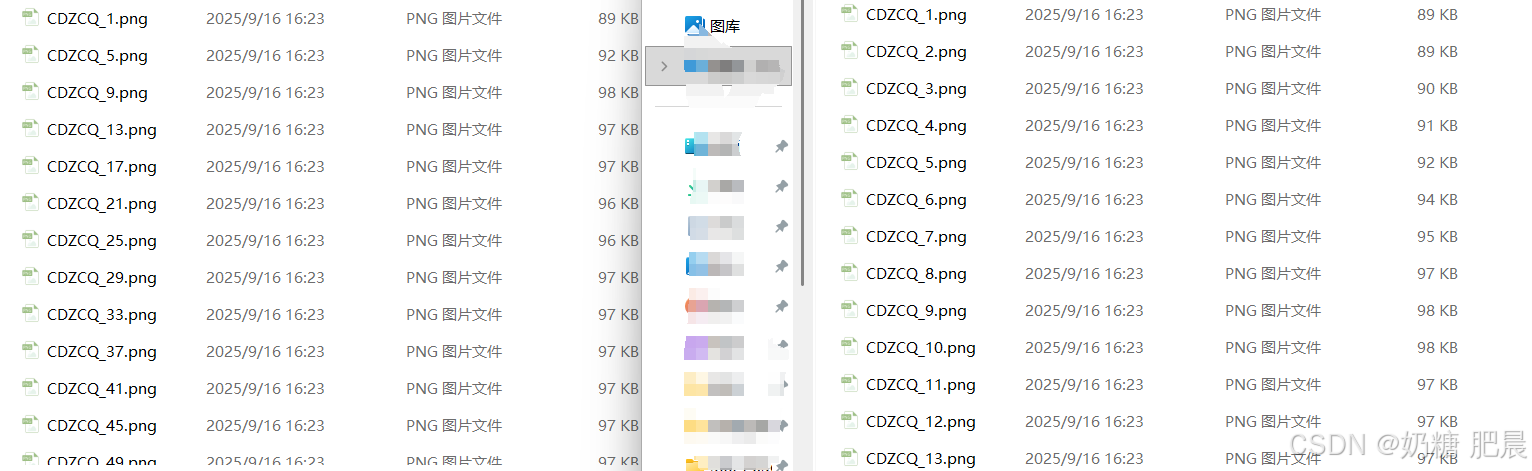
本文将教你如何使用PowerShell实现智能抽帧——删除3/4的图片并压缩画质,大幅优化存储效率。
实现效果:
- Windows PowerShell 5.1 或更高版本
- .NET Framework 4.5+(用于图片处理)
- 足够的磁盘空间存放临时文件
- ImageMagick:更高效的图片处理工具
- FFmpeg:专业的视频处理工具(用于从视频直接抽帧)
# 抽帧压缩大师 v1.0
# 功能:智能保留25%图片 + 画质压缩
param(
    [string]$FolderPath = "C:YourImageSequence",  # 图片序列文件夹
    [int]$Quality = 50,                             # 压缩质量 1-100
    [switch]$Preview                                # 预览模式
)

# 导入图片处理库
Add-Type -AssemblyName System.Drawing

function Start-FrameExtraction {
    Write-Host "=== 抽帧压缩大师开始工作 ===" -ForegroundColor Cyan

    # 设置工作目录
    if (-not (Test-Path $FolderPath)) {
        Write-Host "错误:文件夹不存在!" -ForegroundColor Red
        return
    }
    Set-Location $FolderPath

    # 获取图片序列
    $files = Get-ChildItem "CDZCQ_*.png" | Sort-Object {
        [int]($_.BaseName -replace 'CDZCQ_', '')
    }

    if ($files.Count -eq 0) {
        Write-Host "未找到CDZCQ_*.png格式的图片文件!" -ForegroundColor Red
        return
    }

    Display-ProcessingInfo $files
    if ($Preview) { return }  # 预览模式提前退出

    # 执行备份
    $backupFolder = Backup-Files $files

    # 执行抽帧压缩
    Process-FrameExtraction $files $Quality

    Write-Host "`n=== 处理完成! ===" -ForegroundColor Green
    Write-Host "备份位置: $backupFolder" -ForegroundColor Cyan
}

function Display-ProcessingInfo {
    param($files)

    $totalFiles = $files.Count
    $filesToKeep = [math]::Ceiling($totalFiles / 4)
    $filesToDelete = $totalFiles - $filesToKeep
    $compressionRatio = "约$((100-$Quality))%"

    Write-Host "`n📊 处理统计:" -ForegroundColor Yellow
    Write-Host "   总文件数: $totalFiles" -ForegroundColor White
    Write-Host "   保留文件: $filesToKeep (25%)" -ForegroundColor Green
    Write-Host "   删除文件: $filesToDelete (75%)" -ForegroundColor Red
    Write-Host "   压缩质量: $Quality (体积减少$compressionRatio)" -ForegroundColor Blue

    if ($Preview) {
        Write-Host "`n👀 预览保留的文件:" -ForegroundColor Magenta
        for ($i = 0; $i -lt $files.Count; $i += 4) {
            Write-Host "   ✓ $($files[$i].Name)" -ForegroundColor Green
        }
    }
}

function Backup-Files {
    param($files)

    $backupFolder = "Backup_Frames_$(Get-Date -Format 'yyyyMMdd_HHmmss')"
    Write-Host "`n📦 创建备份: $backupFolder" -ForegroundColor Cyan

    New-Item -ItemType Directory -Path $backupFolder -Force | Out-Null
    Copy-Item "CDZCQ_*.png" $backupFolder

    return $backupFolder
}

function Process-FrameExtraction {
    param($files, $quality)

    $keepCount = 0
    $deleteCount = 0

    Write-Host "`n🔄 开始处理..." -ForegroundColor Yellow

    for ($i = 0; $i -lt $files.Count; $i++) {
        $file = $files[$i]

        # 每4帧保留第1帧
        if ($i % 4 -eq 0) {
            if (Compress-Image -InputPath $file.FullName -Quality $quality) {
                Write-Host "   ✓ 保留: $($file.Name)" -ForegroundColor Green
                $keepCount++
            }
        }
        else {
            Remove-Item $file.FullName -Force
            Write-Host "   ✗ 删除: $($file.Name)" -ForegroundColor Gray
            $deleteCount++
        }
    }

    Write-Host "`n📈 处理结果:" -ForegroundColor Yellow
    Write-Host "   成功保留: $keepCount 个文件" -ForegroundColor Green
    Write-Host "   已删除: $deleteCount 个文件" -ForegroundColor Red
}

function Compress-Image {
    param([string]$InputPath, [int]$Quality)

    try {
        $bitmap = [System.Drawing.Bitmap]::FromFile($InputPath)

        # 获取编码器
        $codecInfo = [System.Drawing.Imaging.ImageCodecInfo]::GetImageEncoders() |
            Where-Object { $_.MimeType -eq 'image/jpeg' }

        $encoderParams = New-Object System.Drawing.Imaging.EncoderParameters(1)
        $encoderParams.Param[0] = New-Object System.Drawing.Imaging.EncoderParameter(
            [System.Drawing.Imaging.Encoder]::Quality,
            $Quality
        )

        # 临时文件
        $tempFile = [System.IO.Path]::ChangeExtension($InputPath, ".tmp")
        $bitmap.Save($tempFile, $codecInfo, $encoderParams)
        $bitmap.Dispose()

        # 替换原文件
        Remove-Item $InputPath -Force
        Move-Item $tempFile $InputPath -Force

        return $true
    }
    catch {
        Write-Host "   压缩失败: $($_.Exception.Message)" -ForegroundColor Red
        return $false
    }
}

# 启动处理
Start-FrameExtraction
# 基本用法
.FrameExtraction.ps1 -FolderPath "C:MyFrames"

# 自定义质量
.FrameExtraction.ps1 -FolderPath "C:MyFrames" -Quality 75

# 预览模式(不实际执行)
.FrameExtraction.ps1 -FolderPath "C:MyFrames" -Preview
基础方案采用"每4帧保留1帧"的简单策略,但可能造成内容分布不均。智能算法确保在整个时间轴上均匀采样:
function Smart-FrameExtraction {
    param($files, $quality)

    $totalFiles = $files.Count
    $filesToKeep = [math]::Ceiling($totalFiles / 4)

    # 计算均匀分布的索引
    $keepIndices = @()
    $step = $totalFiles / $filesToKeep

    Write-Host "`n🎯 智能均匀抽帧算法" -ForegroundColor Magenta
    Write-Host "   采样间隔: $([math]::Round($step, 2)) 帧" -ForegroundColor White

    for ($i = 0; $i -lt $filesToKeep; $i++) {
        $index = [math]::Round($i * $step)
        if ($index -ge $totalFiles) { $index = $totalFiles - 1 }
        $keepIndices += $index
    }

    # 处理文件
    for ($i = 0; $i -lt $files.Count; $i++) {
        if ($keepIndices -contains $i) {
            Compress-Image -InputPath $files[$i].FullName -Quality $quality
            Write-Host "   ✓ 保留[$i]: $($files[$i].Name)" -ForegroundColor Green
        }
        else {
            Remove-Item $files[$i].FullName -Force
        }
    }
}
# Windows使用choco安装
choco install ffmpeg

# 或手动下载添加到PATH
function Extract-FramesFromVideo {
    param(
        [string]$VideoPath,
        [string]$OutputFolder,
        [int]$FrameRate = 6  # 每秒抽取6帧
    )

    if (-not (Get-Command "ffmpeg" -ErrorAction SilentlyContinue)) {
        Write-Host "请先安装FFmpeg!" -ForegroundColor Red
        return
    }

    New-Item -ItemType Directory -Path $OutputFolder -Force | Out-Null

    # 抽帧命令
    $outputPattern = Join-Path $OutputFolder "frame_%04d.png"

    & ffmpeg -i $VideoPath -r $FrameRate -qscale:v 2 $outputPattern

    Write-Host "抽帧完成!输出到: $OutputFolder" -ForegroundColor Green
}

# 使用示例
Extract-FramesFromVideo -VideoPath "input.mp4" -OutputFolder "extracted_frames"
# 监控视频通常帧率较高,需要大幅抽帧
.FrameExtraction.ps1 -FolderPath "C:SecurityCam" -Quality 40
# 从30fps抽到约2fps,适合行为分析
# 动画序列需要较高质量
.FrameExtraction.ps1 -FolderPath "C:AnimationFrames" -Quality 80
# 保留更多细节,便于艺术审查
# AI训练需要平衡质量和数量
.FrameExtraction.ps1 -FolderPath "C:TrainingData" -Quality 60
# 均匀采样确保数据代表性
# 使用工作流提高大文件处理效率
workflow Optimized-Processing {
    param($files, $quality)

    foreach -parallel ($file in $files) {
        # 并行处理
    }
}
# 及时释放图片资源
function Safe-Compress {
    param($filePath, $quality)

    $bitmap = $null
    try {
        $bitmap = [System.Drawing.Bitmap]::FromFile($filePath)
        # 处理图片...
    }
    finally {
        if ($bitmap) { $bitmap.Dispose() }
    }
}
# 显示处理进度
function Show-Progress {
    param($current, $total, $activity)

    $percent = [math]::Round(($current / $total) * 100, 2)
    Write-Progress -Activity $activity -Status "进度: $percent%" -PercentComplete $percent
}
“程序集加载失败”
# 解决方案:使用.NET Core替代
Add-Type -AssemblyName System.Drawing.Common
“文件被占用”
# 解决方案:重试机制
function Safe-FileOperation {
    param($filePath)
    for ($i = 0; $i -lt 3; $i++) {
        try {
            # 文件操作
            break
        }
        catch {
            Start-Sleep -Seconds 1
        }
    }
}
内存不足
# 解决方案:分块处理
$chunks = $files | Group-Object -Property { [math]::Floor($i++ / 50) }
foreach ($chunk in $chunks) {
    Process-Chunk $chunk.Group
    [GC]::Collect()  # 强制垃圾回收
}
抽帧处理后,原始序列:
CDZCQ_1.png
CDZCQ_2.png
CDZCQ_3.png
CDZCQ_4.png
...
CDZCQ_125.png
抽帧后(保留25%):
CDZCQ_1.png
CDZCQ_5.png
CDZCQ_9.png
CDZCQ_13.png
...
问题:序列号不连续,影响后续处理和使用
目标:重命名为连续序列
CDZCQ_1.png
CDZCQ_2.png
CDZCQ_3.png
CDZCQ_4.png
...
# 抽帧压缩与序列重排一体化解决方案
param(
    [string]$FolderPath = "C:YourImageSequence",
    [int]$Quality = 50,
    [switch]$Preview,
    [int]$StartNumber = 1  # 起始序列号
)

Add-Type -AssemblyName System.Drawing

function Start-IntelligentFrameExtraction {
    Write-Host "=== 智能抽帧与序列重排 ===" -ForegroundColor Cyan

    # 初始化
    if (-not (Test-Path $FolderPath)) {
        Write-Host "错误:文件夹不存在!" -ForegroundColor Red
        return
    }
    Set-Location $FolderPath

    # 获取并排序原始文件
    $originalFiles = Get-ChildItem "CDZCQ_*.png" | Sort-Object {
        [int]($_.BaseName -replace 'CDZCQ_', '')
    }

    if ($originalFiles.Count -eq 0) {
        Write-Host "未找到CDZCQ_*.png格式的图片文件!" -ForegroundColor Red
        return
    }

    Display-ProcessingPlan $originalFiles
    if ($Preview) { return }

    # 执行处理流程
    $backupFolder = Backup-OriginalFiles $originalFiles
    $remainingFiles = Extract-AndCompressFrames $originalFiles $Quality
    $renamedFiles = Renumber-Sequence $remainingFiles $StartNumber

    Show-FinalResult $originalFiles $renamedFiles $backupFolder
}

function Display-ProcessingPlan {
    param($files)

    $totalFiles = $files.Count
    $filesToKeep = [math]::Ceiling($totalFiles / 4)

    Write-Host "`n📊 处理计划:" -ForegroundColor Yellow
    Write-Host "   原始文件数: $totalFiles" -ForegroundColor White
    Write-Host "   保留文件数: $filesToKeep (25%)" -ForegroundColor Green
    Write-Host "   起始序列号: $StartNumber" -ForegroundColor Blue

    if ($Preview) {
        Write-Host "`n👀 预览处理效果:" -ForegroundColor Magenta
        Write-Host "   原始序列 → 抽帧后 → 重排后" -ForegroundColor Cyan
        Write-Host "   " + "-" * 50 -ForegroundColor Gray

        $newIndex = $StartNumber
        for ($i = 0; $i -lt $files.Count; $i += 4) {
            if ($i -lt $files.Count) {
                $originalName = $files[$i].Name
                $afterRename = "CDZCQ_$newIndex.png"
                Write-Host "   $originalName → 保留 → $afterRename" -ForegroundColor White
                $newIndex++
            }
        }
    }
}

function Backup-OriginalFiles {
    param($files)

    $backupFolder = "Original_Backup_$(Get-Date -Format 'yyyyMMdd_HHmmss')"
    Write-Host "`n📦 创建原始文件备份: $backupFolder" -ForegroundColor Cyan

    New-Item -ItemType Directory -Path $backupFolder -Force | Out-Null
    Copy-Item "CDZCQ_*.png" $backupFolder

    return $backupFolder
}

function Extract-AndCompressFrames {
    param($files, $quality)

    Write-Host "`n🔄 开始抽帧与压缩..." -ForegroundColor Yellow
    $remainingFiles = @()

    for ($i = 0; $i -lt $files.Count; $i++) {
        $file = $files[$i]

        if ($i % 4 -eq 0) {
            # 压缩并记录保留的文件
            if (Compress-Image -InputPath $file.FullName -Quality $quality) {
                $remainingFiles += $file
                Write-Host "   ✓ 保留: $($file.Name)" -ForegroundColor Green
            }
        }
        else {
            Remove-Item $file.FullName -Force
            Write-Host "   ✗ 删除: $($file.Name)" -ForegroundColor Gray
        }
    }

    return $remainingFiles
}

function Renumber-Sequence {
    param($files, $startNumber)

    Write-Host "`n🔢 开始序列号重排..." -ForegroundColor Yellow
    $renamedFiles = @()
    $currentNumber = $startNumber

    # 先按原始序列号排序确保顺序正确
    $sortedFiles = $files | Sort-Object {
        [int]($_.BaseName -replace 'CDZCQ_', '')
    }

    foreach ($file in $sortedFiles) {
        $newName = "CDZCQ_$currentNumber$($file.Extension)"
        $newPath = Join-Path $file.Directory.FullName $newName

        try {
            # 检查目标文件名是否已存在(处理冲突)
            if (Test-Path $newPath) {
                Write-Host "   ⚠ 跳过: $newName 已存在" -ForegroundColor Yellow
                $renamedFiles += Get-Item $newPath
            }
            else {
                Rename-Item -Path $file.FullName -NewName $newName
                Write-Host "   🔄 重命名: $($file.Name) → $newName" -ForegroundColor Cyan
                $renamedFiles += Get-Item $newPath
            }
            $currentNumber++
        }
        catch {
            Write-Host "   ❌ 重命名失败: $($file.Name) → $newName" -ForegroundColor Red
            Write-Host "      错误: $($_.Exception.Message)" -ForegroundColor Red
        }
    }

    return $renamedFiles
}

function Compress-Image {
    param([string]$InputPath, [int]$Quality)

    try {
        $bitmap = [System.Drawing.Bitmap]::FromFile($InputPath)
        $codecInfo = [System.Drawing.Imaging.ImageCodecInfo]::GetImageEncoders() |
            Where-Object { $_.MimeType -eq 'image/jpeg' }

        $encoderParams = New-Object System.Drawing.Imaging.EncoderParameters(1)
        $encoderParams.Param[0] = New-Object System.Drawing.Imaging.EncoderParameter(
            [System.Drawing.Imaging.Encoder]::Quality, $Quality
        )

        $tempFile = [System.IO.Path]::ChangeExtension($InputPath, ".tmp")
        $bitmap.Save($tempFile, $codecInfo, $encoderParams)
        $bitmap.Dispose()

        Remove-Item $InputPath -Force
        Move-Item $tempFile $InputPath -Force

        return $true
    }
    catch {
        Write-Host "   压缩失败: $($_.Exception.Message)" -ForegroundColor Red
        return $false
    }
}

function Show-FinalResult {
    param($originalFiles, $renamedFiles, $backupFolder)

    Write-Host "`n🎉 处理完成!" -ForegroundColor Green
    Write-Host "📊 最终统计:" -ForegroundColor Yellow
    Write-Host "   原始文件数: $($originalFiles.Count)" -ForegroundColor White
    Write-Host "   最终文件数: $($renamedFiles.Count)" -ForegroundColor Green
    Write-Host "   备份位置: $backupFolder" -ForegroundColor Cyan

    Write-Host "`n📁 最终文件列表:" -ForegroundColor Magenta
    $renamedFiles | Sort-Object { [int]($_.BaseName -replace 'CDZCQ_', '') } |
        ForEach-Object { Write-Host "   ✓ $($_.Name)" -ForegroundColor Green }
}

# 启动处理
Start-IntelligentFrameExtraction
# 一体化处理(推荐)
.FrameExtractionWithRenumber.ps1 -FolderPath "C:MyFrames" -Quality 60 -StartNumber 1

# 仅重排已抽帧的文件
.RenumberSequence.ps1 -FolderPath "C:AlreadyExtracted" -StartNumber 1

# 预览模式
.RenumberSequence.ps1 -FolderPath "C:MyFrames" -Preview
# 自定义命名模式
.AdvancedRenumber.ps1 -Pattern "frame_*.jpg" -NewPattern "scene_{0:000}" -StartIndex 1

# 设置步长
.AdvancedRenumber.ps1 -Pattern "IMG*.png" -NewPattern "photo_{0}" -StartIndex 10 -Step 2
CDZCQ_1.png
CDZCQ_5.png
CDZCQ_9.png
CDZCQ_13.png
CDZCQ_17.png
CDZCQ_1.png
CDZCQ_2.png
CDZCQ_3.png
CDZCQ_4.png
CDZCQ_5.png
- 使用临时文件夹避免文件覆盖
- 先复制后删除确保数据安全
- 异常处理保证流程完整性
# 确保按数字顺序排序
Sort-Object { [int]($_.BaseName -replace 'CDZCQ_', '') }
支持各种命名约定:
CDZCQ_1,CDZCQ_2…frame_001,frame_002…scene_1,scene_2…
以上就是使用PowerShell实现视频抽帧的完全指南的详细内容,更多关于PowerShell视频抽帧的资料请关注风君子博客其它相关文章!
您可能感兴趣的文章:
- 使用PowerShell实现定时播放视频和音频文件
- 详解如何利用PowerShell提取wps表格中嵌入的图片
- Powershell获取图片名字、文件夹及拍摄时间的例子