 编程部落
编程部落文章目录
目录
- 前言
- 这个工具能干嘛
- 我们要用到哪些库
- 核心功能
- 代码升级
- 使用场景
- 总结
先跟大家唠个事。那天我一边喝豆浆一边刷知乎,看到一段贼棒的代码,想着“嗯不错”,就 Ctrl+C 复制了一下。结果刚准备存进我的代码片段收藏夹,微信群里弹出消息,我回了个表情包……再一复制,“啪”一下,原来的内容没了。
我当时嘴角抽了一下,感觉就像是打麻将摸到好牌,结果被人杠了……
于是,我决定写一个 Python 小工具,专门干这件事:记录你复制的文本内容,自动保存,再也不怕搞丢灵感或者代码段!
这玩意我给它起了个有点中二的名字——灵犀剪贴,嘿嘿。
说人话就是:
- 它会实时监控你的剪贴板,偷看你复制了啥
- 然后它会把你复制的内容保存起来
- 所有文本内容会按时间存在一个
.txt文件里,井井有条 - 它不会把你剪贴板复制的内容上传到网上,所以安全
pyperclip:访问剪贴板;datetime:给你的笔记打上时间戳。
pyperclip:访问剪贴板;datetime:给你的笔记打上时间戳。安装方法也超简单,来一发
pip install pyperclip
其实最核心的功能:复制就保存!
这里用轮询方式,每隔 1 秒检查一次内容,会略微多占一点 CPU(不过 1 秒轮询其实很轻微)
import pyperclip
import time

last_copied = ""
print("灵犀剪贴 正在监听中…")
with open("copied_texts.txt", "a", encoding="utf-8") as f:
    while True:
        try:
            current = pyperclip.paste()
            if current != last_copied:
                last_copied = current
                timestamp = time.strftime("[%Y-%m-%d %H:%M:%S]")
                f.write(f"{timestamp} n{current}nn")
                print(f"已保存:{current[:30]}...")
            time.sleep(1)
        except:
            print("灵犀剪贴 运行异常")
            break
核心功能:pyperclip.paste()获取剪贴板里的内容
接下来给这段代码做个升级
- 按天分类保存内容,比如
copied_texts_2025_04_09.txt - 加个托盘图标 + 开关
接下来就是见证奇迹的时刻:
import pyperclip
import time
import threading
from pystray import Icon, Menu, MenuItem
from PIL import Image
import os

# 全局控制开关
class ClipboardMonitor:
    def __init__(self):
        self.running = True
        self.listener_thread = None
        self.last_copied = ""
        self.current_date = time.strftime("%Y_%m_%d")

    def start_listening(self, icon=None):
        if (self.listener_thread is None) and self.running:
            self.listener_thread = threading.Thread(target=self._listen_clipboard)
            self.listener_thread.start()

        if not self.running:
            self.running = True
            self.listener_thread = threading.Thread(target=self._listen_clipboard)
            self.listener_thread.start()
            if icon: icon.notify("剪贴板监听已启动", "灵犀剪贴")

    def stop_listening(self, icon=None):
        if self.running:
            self.running = False
            if icon: icon.notify("剪贴板监听已停止", "灵犀剪贴")
            if self.listener_thread and self.listener_thread.is_alive():
                self.listener_thread.join()

    def _listen_clipboard(self):
        while self.running:
            try:
                current_content = pyperclip.paste()

                if current_content != self.last_copied and current_content.strip() != "":
                    self.last_copied = current_content

                    # 处理每日文件切换
                    today = time.strftime("%Y_%m_%d")
                    if today != self.current_date:
                        self.current_date = today

                    self._save_content(current_content)

                time.sleep(0.8)

            except Exception as e:
                print(f"[ERROR] {str(e)}")
                self.running = False

    def _save_content(self, content):
        timestamp = time.strftime("[%Y-%m-%d %H:%M:%S]")
        filename = f"copied_texts_{self.current_date}.txt"

        try:
            with open(filename, "a", encoding="utf-8") as f:
                f.write(f"{timestamp}n{content}nn")

            preview = content[:50].replace("n", "→")
            print(f"[已保存] {preview}{'...' if len(content)>50 else ''}")

        except Exception as e:
            print(f"[保存失败] {str(e)}")

# 托盘图标管理
class TrayManager:
    def __init__(self):

        self.monitor = ClipboardMonitor()
        # self.monitor.start_listening()
        self.icon_on = Image.open("icon_on.png")  # 监听中图标
        self.icon_off = Image.open("icon_off.png")  # 暂停图标
        self.icon = None
        self._create_tray_icon()

    def _create_menu(self):
        return Menu(
            MenuItem(
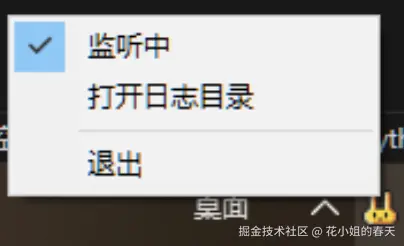
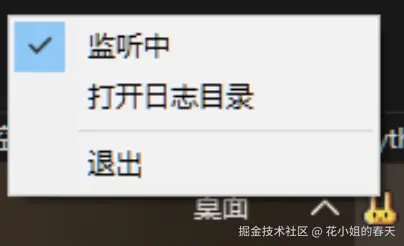
                '监听中',
                self.toggle_listen,
                checked=lambda item: self.monitor.running
            ),
            MenuItem(
                '打开日志目录',
                self.open_log_dir
            ),
            Menu.SEPARATOR,
            MenuItem('退出', self.exit_app)
        )

    def _create_tray_icon(self):
        # 生成托盘图标
        self.icon = Icon(
            "灵犀剪贴",
            self.icon_on if self.monitor.running else self.icon_off,
            menu=self._create_menu(),
            title="灵犀剪贴"
        )
    def update_icon_image(self):
        self.icon.icon = self.icon_on if self.monitor.running else self.icon_off

    def update_menu(self):
        self.icon.menu = self._create_tray_icon().menu

    def toggle_listen(self, item):
        if self.monitor.running:
            self.monitor.stop_listening(self.icon)
        else:
            self.monitor.start_listening(self.icon)

        self.update_icon_image()
        self.icon.menu = self._create_menu()
        self.icon.update_menu()

    def open_log_dir(self, item):
        log_dir = os.getcwd()
        os.startfile(log_dir)

    def exit_app(self, item):
        self.monitor.stop_listening()
        self.icon.stop()
        print("程序已安全退出")

    def run(self):
        self.monitor.start_listening()
        self.icon.run()


if __name__ == "__main__":
    print("=== 灵犀剪贴监控程序 ===")
    print("日志将保存在程序所在目录")
    print("可通过系统托盘图标控制")

    try:
        app = TrayManager()
        app.run()
    except Exception as e:
        print(f"! 程序初始化失败: {str(e)}")
使用提示:
1.你需要在额外安装2个库
pip install Pillow pystray
2. 你需要两张图标:
彩色(监听中)图标:比如一片小绿叶、耳朵图标、录音状态啥的。 灰色(暂停)图标:同一风格的灰色版,表示“停止监听”。
运行程序以后可以在系统托盘看到对应的程序了。
常用场景举几个:
- 写公众号、论文、报告时,随手复制的引用内容直接自动归档;
- 和朋友聊天时突然冒出一句“金句”,复制一下自动保留,方便以后做社媒素材;
- 做调研、整理资料时,不用每次手动 Ctrl+V 存一堆;
- 懒人备忘神器,复制即记录,谁还手动记东西啊!
说实话,这个项目最开始就是我那天被复制覆盖了灵感之后,一气之下写的。
写完之后回头一看,其实很多我们日常“忽略掉的动作”(比如复制),只要有点技术力,就能变得更智能、更贴心。
有时候,一个小工具,解决的不是技术问题,是你的生活细节和思路的延续。
到此这篇关于Python实现自动记录复制的文本并保存的文章就介绍到这了,更多相关Python文本复制记录与保存内容请搜索风君子博客以前的文章或继续浏览下面的相关文章希望大家以后多多支持风君子博客!
您可能感兴趣的文章:
- Python复制Word内容并使用格式设字体与大小实例代码
- Python 新建文件夹与复制文件夹内所有内容的方法
- python如何将文件a.txt的内容复制到b.txt中
- python中浅复制copy与深复制deepcopy
- Python复制文件的9个方法小结